How-to · Merge PDF
How to merge PDFs on an iPhone without installing an app
Short answer
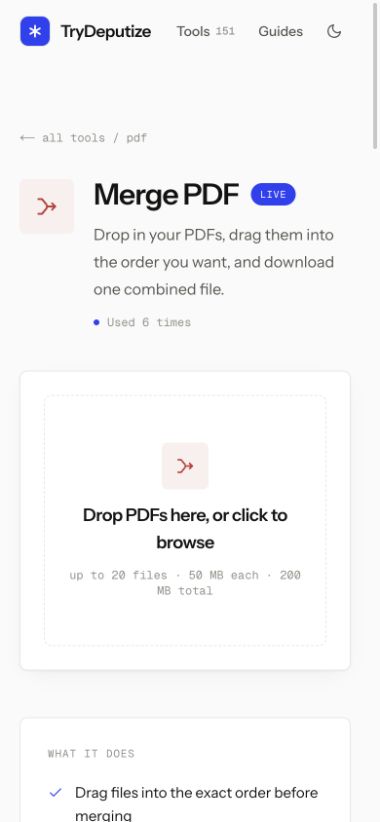
You can merge PDFs on an iPhone without installing an app. Safari handles the web page, and the standard iOS file picker gives it access to files you choose from iCloud Drive, On My iPhone, and connected file providers.
The browser method is the most repeatable option because it shows the entire file order before the merge. If you want more detail about how whole-file order differs from page order, read the complete Merge PDF guide.
Merge the PDFs in Safari
-
Open Merge PDF in Safari.
-
Tap the upload area. The iOS file picker opens. Browse to the first location, select the PDFs available there, and confirm the choice. Use Add more PDFs if the rest are in another folder or file provider.
-
Read the numbered merge order. Drag a row when touch dragging is comfortable, or use the up and down controls for a precise one-step move. The first file contributes the first pages of the result.
-
Check the combined preview and remove anything that does not belong. Tap Merge PDFs, wait for the result, then tap the download button.
Merge PDF
Combine PDFs into one file
Free · no signup · files deleted in 60 minutes
Find the downloaded file
Safari keeps a Downloads list behind the arrow icon near the address bar. The saved PDF also goes to the download location chosen in Safari settings. That location is often a Downloads folder in iCloud Drive or On My iPhone, but it can be changed, so do not assume one fixed folder.
Open the result before sharing it. Check the total page count, the transition between each source file, and the final page. That quick review catches a wrong order or an accidentally repeated input while the originals are still easy to find.
What about doing it entirely in Files?
The actions shown by the Files app can vary with the iOS version, the selected file types, and the storage provider. Some combinations expose a Create PDF quick action, while others do not give you a dependable merge command or a clear way to confirm the output order.
If your Files app offers a local Create PDF action, work on copies, use numbered filenames, and inspect the result carefully. If the action is absent or order matters, Safari is the clearer route. For a document that must never leave the phone, use an approved local workflow rather than uploading it just for convenience.
Make large phone scans easier to merge
PDFs created by a phone scanner can be much larger than a document exported from Pages or Word. One merge accepts up to 20 PDFs, 50 MB for each file, and 200 MB in total. If every scan is under 50 MB but the combined total is too large, use Compress PDF on working copies, inspect the results, and then return to the merge. A single file over 50 MB is also over the compressor’s upload cap, so use approved local software or rescan it at a lower size instead.
Compression is separate from merging. It can soften scanned images, so check small text, dates, signatures, and reference numbers before sending the final file.
Decide whether the upload is appropriate
The Safari method uploads only the files you select. They are used for the merge, and the uploads and result are deleted from the server automatically about an hour later. The online PDF safety guide explains the questions to ask before using any server-side PDF tool.
Automatic deletion does not override a workplace, school, legal, or healthcare rule that forbids third-party processing. When a policy says local only, use software approved for the device or organization.
When this won’t work
- One input is over 50 MB. The online compressor has the same per-file cap, so use approved local software or create a smaller scan.
- The total is over 200 MB or there are more than 20 PDFs. Reduce the set, compress inputs that are under 50 MB, or merge in smaller batches.
- Files inside another app’s private storage. If a PDF only exists inside a third-party app, export it to Files first. The iOS picker cannot reach content that the other app does not expose.
- An input needs a password to open. Unlock a working copy first with the password you already know. The merge does not guess passwords.
- The document must remain on the phone. Do not use a server-side merge for files governed by a local-only rule, even when automatic deletion is offered.
Questions
Do I need to install anything?
No. The merge runs in Safari, and the file picker is part of iOS. There is no App Store download and no account.
Which method should I use?
Use the Safari method when you need a clear file order or your PDFs are in different folders or providers. Use an approved local app instead when policy says the files cannot be uploaded.
Where does the merged PDF download?
Safari shows it in the Downloads list. The file also appears in the download location configured for Safari, which may be iCloud Drive, On My iPhone, or another folder.
Can I merge password-protected PDFs?
Not while an input needs a password to open. Make an unlocked working copy with the password you already know, then add that copy to the merge.
Merge PDF
Combine PDFs into one file
Free · no signup · files deleted in 60 minutes
The rest of this topic
- How do I combine several PDFs into one file?Open Merge PDF, add your files, drag them into the order you want, and download the combined file.Main guide
- Why does my merge fail with a password error?One of the files needs a password to open, and the merge stops rather than guessing.Fix
- Is it safe to upload my PDF to a free online tool?A server-side tool copies your file to a server, processes it, and retains it until its deletion rule runs.Explainer
Related guides
- How do I combine several PDFs into one file?Open Merge PDF, add your files, drag them into the order you want, and download the combined file.Main guide
- Why does my merge fail with a password error?One of the files needs a password to open, and the merge stops rather than guessing.Fix
- Is it safe to upload my PDF to a free online tool?A server-side tool copies your file to a server, processes it, and retains it until its deletion rule runs.Explainer