Main guide · Merge PDF
How to merge PDF files for free
Short answer
In this guide
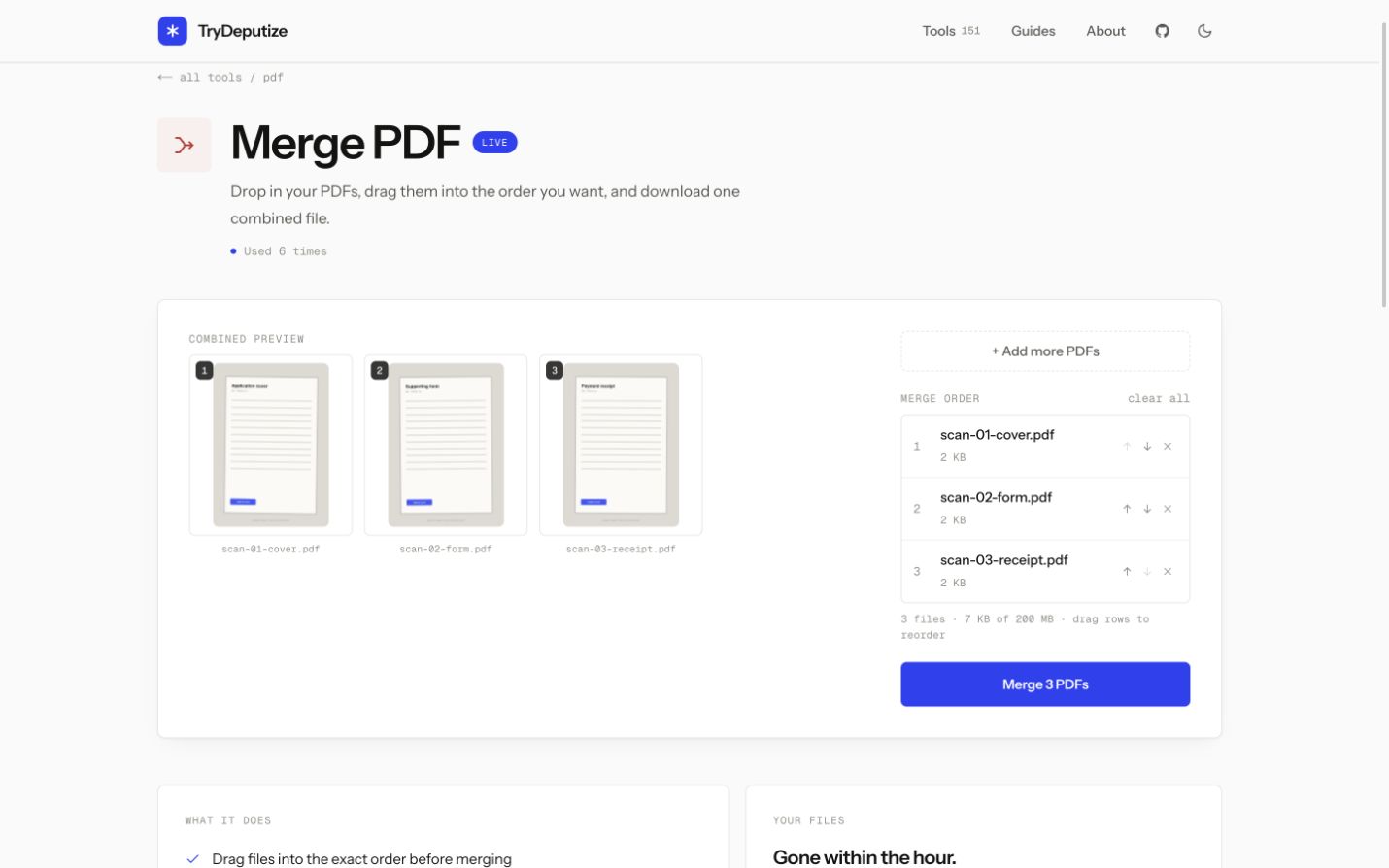
To merge PDF files, open Merge PDF, add at least two files, put them in the order you want, check the combined page preview, and download the result. The tool accepts up to 20 PDFs, with a 50 MB limit for each file and a 200 MB total limit. It adds no watermark and requires no signup.
The important part is checking the order before you press merge. The tool joins whole files in the order shown on screen. It does not rearrange pages inside an individual PDF, remove repeated pages, or correct pages that were already sideways.
Merge two or more PDFs
-
Add your PDFs by dropping them onto the page or clicking to browse. You can start with a few and use Add more PDFs if the rest are stored somewhere else.
-
Read the Merge order list. Each row shows its position, filename, and size. Drag a row to a new position, or use its up and down controls. The first file contributes the first pages of the result.
-
Inspect the Combined preview. It lays out the pages in the order they will appear and labels them with their source filenames. When a job contains more than 60 pages, the preview shows the first 60, while the merge still includes the remaining pages.
-
Remove anything that does not belong, then check the file count and total size shown below the list. The merge button becomes available once at least two PDFs are present.
-
Press Merge PDFs, wait for the server to finish, and download
merged.pdf. Open the downloaded copy before closing the page.
Merge PDF
Combine PDFs into one file
Free · no signup · files deleted in 60 minutes
File order and page order are different
Imagine you add cover.pdf, report.pdf, and appendix.pdf. If they appear in
that order in the Merge order list, every page from the cover comes first, then
every page from the report, then every page from the appendix.
Dragging appendix.pdf above report.pdf moves the entire appendix. It does not
let you place appendix page 2 between report pages 4 and 5. The preview makes
that boundary visible, which is why it is more reliable than judging by
filenames alone.
The pages inside each source keep their existing sequence and orientation. If page 3 of the report is upside down before the merge, it will still be upside down afterwards. Use Rotate PDF on the source or result when orientation is the problem.
What happens when the same file is added twice
The picker protects against a common accident: selecting the same local file again. When its filename, size, and last-modified value match a file already in the list, it is skipped and the page says that it is already there.
This check prevents the usual double-click or repeated-selection mistake. It is not content analysis. If two separate PDFs happen to contain the same pages, the tool does not compare their page contents and remove one. Both files remain in the merge because deleting apparently repeated material without permission could remove something intentional.
If the preview shows repeated pages, look at the filename captions and remove the unwanted source from the Merge order list. Do that before merging instead of trying to repair the combined PDF afterwards.
The limits and what to do when you pass them
One merge accepts up to 20 PDFs and 200 MB in total. Each individual file can be up to 50 MB. Files that would take the job over those limits are skipped with a specific notice rather than being silently left out.
For more than 20 PDFs, merge them in sensible batches. Download the first combined result, then use that result as one input in the next batch. Keep the batch boundaries obvious, such as documents 1 to 20 followed by documents 21 to 35, so the final order is easy to verify. The intermediate result must still fit the 50 MB per-file cap when it returns as an input. Use smaller batches or a desktop application if a batch result crosses that limit.
If total size is the problem, first decide whether all source files belong in the result. When they do, merge them and then use the under 1 MB compression guide if the combined file needs to fit an upload or email limit. Compression is a separate operation and can affect image detail, especially on scans, while merging itself does not rerender or recompress the pages.
What merging does to your files
Merging combines the existing PDF pages into one document rather than turning them into screenshots. The tool copy guarantees that pages are not rerendered or recompressed, so merging does not intentionally lower their visual quality. It also does not improve a blurry scan or repair a damaged source.
Your source files are uploaded over HTTPS and used to run the merge. The uploads and merged result are deleted from the server automatically about an hour later. That provides time to download the output, but it does not make an online tool appropriate for a document that policy or law says must never be uploaded.
Check the merged PDF before sending it
Open the downloaded file and check more than its first page. A quick review should answer five questions:
- Does it open without an error?
- Is the total page count what you expected?
- Do the boundaries between files appear in the correct order?
- Are any pages repeated, missing, blank, or sideways?
- Can you still select or search text where the source allowed it?
For a long document, inspect the first and last page of each source section. Those transition points catch wrong ordering faster than scrolling through every page. Save the result somewhere you control before the server copy is deleted.
When this won’t work
- A source PDF needs a password to open. The merge stops rather than trying to bypass it. Follow the password-protected PDF fix, then add the unlocked copy.
- One file is over 50 MB, the total is over 200 MB, or you need more than 20 inputs in one pass. Use batches or a desktop application for a job that cannot fit the stated limits.
- You need to rearrange individual pages across the source files. This tool orders whole PDFs. It does not provide page-level organization.
- The document must stay offline. Automatic deletion about an hour later is not the same as never uploading it. Use software on your own device when the file is governed by a rule that forbids server processing.
- The same merge every week. If this is a recurring job, script it once with a command line tool instead of doing it by hand forever.
Questions
Does merging reduce the quality of my PDFs?
No. Merging copies each page across as it is, so text stays selectable and images keep their original resolution. Nothing is re-rendered or recompressed.
Can I choose the order of the files?
Yes, and you should check it before merging. Files start in the order you added them, and you can drag them into any order you like. The page order inside each file is never changed.
Is there a watermark or a daily limit?
Neither. There is no watermark on the output, no signup, and no cap on how many times you can use it. The only limits are the file size and count limits listed above.
What happens to my files after I merge them?
They are uploaded over HTTPS, used only to run the merge, and deleted from the server automatically about an hour later, along with the merged result. Save the download before then.
Merge PDF
Combine PDFs into one file
Free · no signup · files deleted in 60 minutes
The rest of this topic
- How do I merge PDFs on my iPhone?Open Merge PDF in Safari, add the PDFs with the Files picker, arrange them in the order you want, and download the combined file.How-to
- Why does my merge fail with a password error?One of the files needs a password to open, and the merge stops rather than guessing.Fix
- Is it safe to upload my PDF to a free online tool?A server-side tool copies your file to a server, processes it, and retains it until its deletion rule runs.Explainer
Related guides
- How do I merge PDFs on my iPhone?Open Merge PDF in Safari, add the PDFs with the Files picker, arrange them in the order you want, and download the combined file.How-to
- Why does my merge fail with a password error?One of the files needs a password to open, and the merge stops rather than guessing.Fix
- Is it safe to upload my PDF to a free online tool?A server-side tool copies your file to a server, processes it, and retains it until its deletion rule runs.Explainer