Main guide · Compress PDF
How to compress a PDF to under 1 MB for email
Short answer
In this guide
Almost nobody wants to compress a PDF for its own sake. The real goal is usually to satisfy an email service, application form, or document portal that refuses a large attachment. Those limits vary by provider, so check the exact message you received rather than assuming every inbox accepts the same size.
If the requirement is 1 MB, aim slightly below it. A file shown as 1.0 MB on your computer may still be a few bytes over the receiver’s limit, and some systems count file size differently. A little margin avoids another rejected upload.
Compress the PDF to 1 MB
-
Add the original PDF to the compressor.
-
Choose Smaller file when the 1 MB limit matters more than preserving every image detail. This is the strongest of the three available settings.
-
Run the compression, download the result, and check its size on your device.
-
Open the downloaded PDF before sending it. Inspect small text, signatures, diagrams, photographs, and any pages that were faint in the original.
Compress PDF
Shrink a PDF to email-able size
Free · no signup · files deleted in 60 minutes
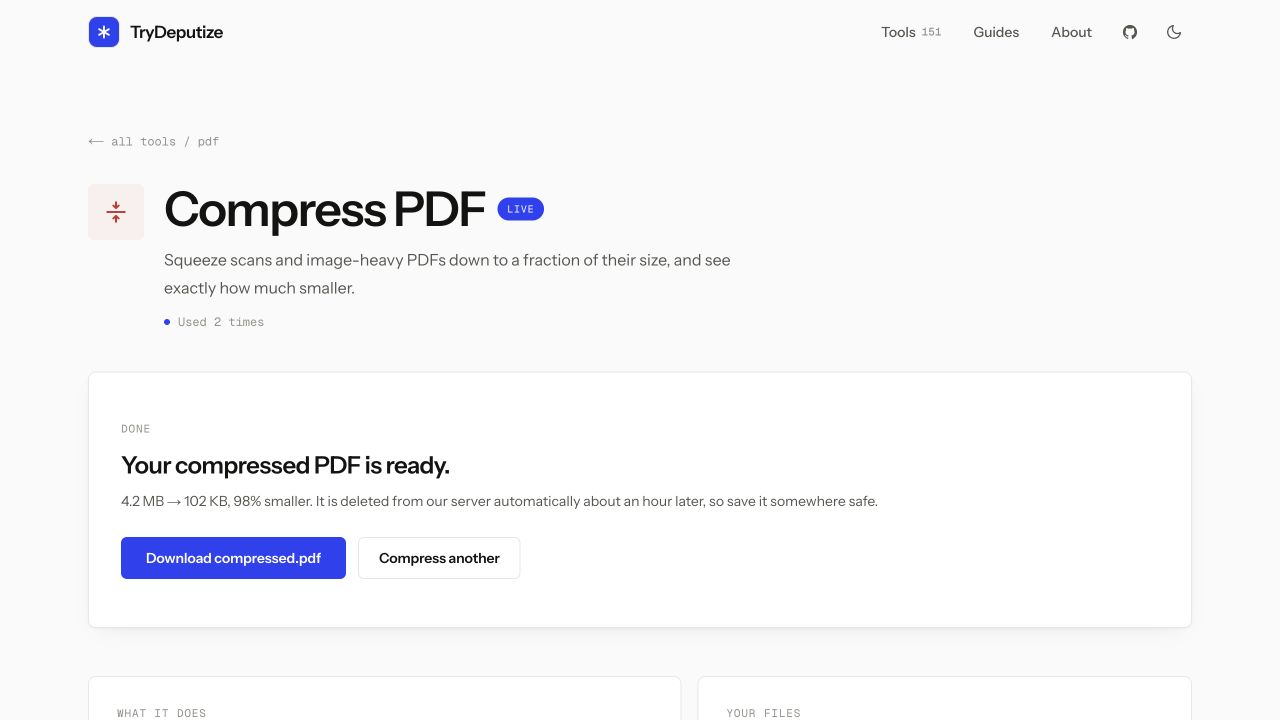
The screenshot above records one real test with a harmless synthetic document. The four-page scan went from 4.2 MB to 102 KB. That large reduction happened because the source consisted mostly of images with room to shrink. A different PDF may fall by much less, especially if it has already been optimized.
Which compression level should you choose?
The labels describe a quality and size tradeoff, not a guaranteed final size:
- Smaller file applies the strongest reduction. Start here for a hard 1 MB requirement, especially when the PDF is mainly for on-screen reading.
- Balanced preserves more image detail while still reducing many ordinary documents. It is a sensible first choice when your current file is only a little over the limit.
- Higher quality protects visual detail and is better when print quality matters. It usually saves less space, so it is less likely to rescue a file that is several megabytes over the target.
The best setting is the least aggressive one that gets the file below the receiver’s limit and still looks acceptable. If Balanced reaches 900 KB and the pages look good, there is no benefit in forcing the file down to 200 KB.
Why some PDFs shrink more than others
What is inside the PDF matters more than its page count. Two ten-page files can have completely different sizes.
If your PDF was made from a document (exported from Word, Pages, Google Docs, or printed to PDF), much of the content may be text and vector shapes. Those elements can remain crisp while embedded photographs, duplicate resources, or other reusable data are optimized. Results still vary because fonts, forms, annotations, and existing compression all affect the file.
If your PDF is scanned or photographed, every page is a picture of a page. Image data usually accounts for most of the size. Colour, high resolution, and camera noise make each page heavier. Reducing those images can produce a large saving, but there is a point where smaller also means less legible. The section below explains the practical alternatives when that limit is reached.
Try selecting a sentence before compression. If individual words highlight, the file has a text layer. If the whole page behaves like one image, it is probably a scan. A scanned file can also contain an OCR text layer placed over the page image, so selectable text does not always mean the images are small.
What to do when it is still over 1 MB
Do not repeatedly compress the result you just downloaded. Every new pass starts with less image information and may add visible damage without a meaningful size reduction. Return to the original PDF, then try a different approach:
- Remove pages that the recipient does not need with Delete PDF Pages.
- Use Split PDF if the receiver accepts several attachments or uploads. Confirm that its limit applies per file before sending separate parts.
- Rescan from the paper at a lower resolution or in grayscale when colour is not important. Keep the first rescan as your new original.
- Use OCR PDF if an image-only scan must become searchable. OCR can add a text layer, but it is not a guaranteed way to reduce file size. Complete the OCR first, then compress that output once and verify the result.
If the receiver requires one PDF under 1 MB and every page must remain clear, ask whether they accept a secure download link instead. A hard size target cannot always be met without removing pages or visible detail.
When this won’t work
- The file is already near its practical minimum. A PDF created by an optimized export or compressed earlier may have little removable data.
- The document must preserve fine print or image evidence. Contracts with tiny clauses, medical images, architectural plans, and identity documents may become unusable if reduced aggressively.
- One large image is essential. A photo portfolio or detailed map cannot lose much image information and remain fit for its purpose.
- The receiver forbids split files or links. In that case, only the sender can decide whether rescanning, deleting pages, or accepting lower quality is appropriate.
Questions
Will compressing make my PDF blurry?
It depends on what is inside and which level you choose. Selectable text and vector shapes can stay sharp, while photographs and scanned pages may be downsampled and look softer when you zoom in. Always inspect the result before sending it.
What if the compressed file is bigger than the original?
The tool compares the result with the upload and returns the smaller version. If the PDF is already efficient, the size may barely change instead of increasing.
Why is my scanned PDF still huge after compressing?
Each scanned page is an image, so a long colour scan can contain far more image data than a document exported from a word processor. There is also a practical floor where further reduction makes small text difficult to read.
Does compression remove the text layer?
A normal text layer or existing OCR layer can remain searchable, but the result depends on how the original PDF is built. Compression does not add OCR to an image-only scan, so test text selection in the downloaded file.
Compress PDF
Shrink a PDF to email-able size
Free · no signup · files deleted in 60 minutes
The rest of this topic
- How do I compress a scanned PDF without making it unreadable?Open Compress PDF, upload the scan, and start with Balanced.How-to
- Why is my PDF so big?A PDF is usually large because it contains scanned pages, high-resolution photographs, or other image-heavy content.Explainer
- How do I compress a PDF to 500KB?Open Compress PDF, choose Smaller file, download the result, and check its size against 500 KB.How-to
Related guides
- How do I compress a scanned PDF without making it unreadable?Open Compress PDF, upload the scan, and start with Balanced.How-to
- Why is my PDF so big?A PDF is usually large because it contains scanned pages, high-resolution photographs, or other image-heavy content.Explainer
- How do I compress a PDF to 500KB?Open Compress PDF, choose Smaller file, download the result, and check its size against 500 KB.How-to