How-to · Compress PDF
How to compress a scanned PDF
Short answer
To compress a scanned PDF, upload it to Compress PDF, choose Balanced, and download the result. Open that copy and inspect the smallest text, names, numbers, and signatures before deciding it is good enough. If the file is still above your limit, repeat with Smaller file. Use Higher quality when preserving fine detail matters more than getting the smallest possible file.
A scan behaves differently from a PDF exported from Word or another document editor. In a normal document PDF, text can stay as sharp text while images are compressed separately. In a scanned PDF, each page is mainly a photograph of paper. Making the file smaller therefore means removing some image data, and the useful question is not whether quality changes, but whether the details you need remain clear.
Compress the scan
-
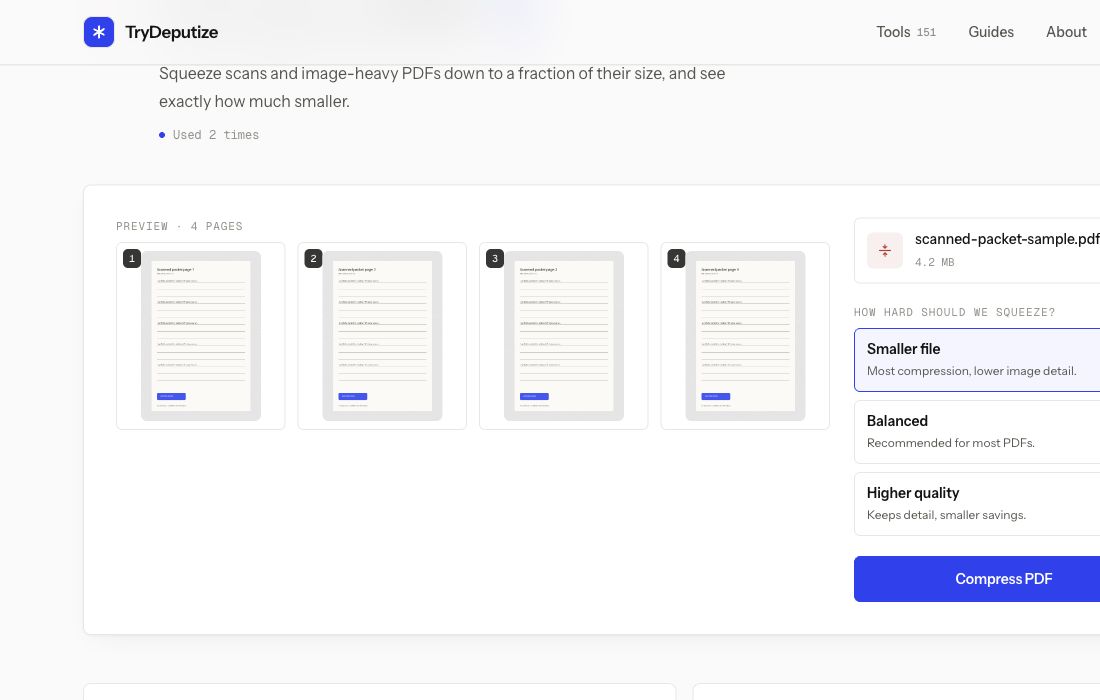
Open Compress PDF and add the scanned file. Check the page previews to make sure you selected the complete document and that every page is facing the right way.
-
Select Balanced first. It is the sensible starting point when you want a meaningful reduction without immediately choosing the strongest setting.
-
Press Compress PDF, download the result, and open it in a PDF viewer. Do not judge it from a small browser thumbnail.
-
Zoom in on the smallest text and inspect names, account or reference numbers, dates, decimal points, signatures, stamps, and handwritten notes. Also search or copy a few words if the original was searchable.
-
If the result is readable but still too large, run the original through Smaller file. If Balanced removed too much detail, go back to the original and choose Higher quality instead.
Compress PDF
Shrink a PDF to email-able size
Free · no signup · files deleted in 60 minutes
The file is processed on the server and deleted automatically about an hour later. If the document must never leave your device or network, use an offline PDF application instead.
What our test actually measured
For the screenshot above, we made a synthetic four-page scan containing small text fields, names, numbers, and signature lines. The source PDF was 4.2 MB. With Smaller file selected, the downloaded result was 102 KB.
That is a measurement from this one synthetic sample, not a promise for every scan. A clean form with large areas of plain paper can shrink very differently from a colour brochure, a photograph-heavy report, or pages covered in scanner noise. Page count, scan resolution, colour, shadows, background texture, and previous compression all change the result.
The 102 KB copy was useful for demonstrating the strongest setting, but size alone does not tell you whether a real document is ready to send. The correct result is the smallest copy that still preserves the information its recipient needs.
How to judge the compressed copy
Start at 100 percent zoom, then zoom further into the most fragile details. Large headings can look perfect while a faint serial number or a handwritten signature has already become difficult to read. Check at least one page from the beginning, middle, and end, since scan quality can change between pages.
Pay particular attention to:
- small names, addresses, dates, and reference numbers
- decimal points, punctuation, and similar-looking digits
- signatures, initials, stamps, and faint handwriting
- diagrams, fine lines, checkboxes, and shaded form fields
- searchable text, if the scan already contains an OCR layer
If the document is not searchable, compression will not create searchable text. Use OCR a PDF when you need to search or copy words from the pages. Run OCR on a clear source when possible, then verify both the text layer and the visible page after compression.
If you need to reach a strict limit
Use the original scan for each attempt rather than repeatedly compressing an already compressed copy. Repeating the process can discard more detail without giving a useful additional saving.
If Smaller file is still over the limit, the realistic options are to rescan the paper at a more suitable resolution, use grayscale when colour is not necessary, or divide the document with Split PDF. The broader under 1 MB guide explains when splitting is a better answer than forcing every page into one very small file.
When this won’t work
- The scan must preserve forensic or archival detail. Compression is the wrong trade when faint marks, original image quality, or exact reproduction carries legal or historical value. Keep the original and send it another way.
- The source is already difficult to read. Compression cannot recover blurred text, clipped edges, shadows, or low contrast. Rescan the paper before trying to make the file smaller.
- Every page is a detailed colour image. A meaningful reduction may also make photographs, drawings, or annotations visibly worse. Choose Higher quality or use a file-transfer service instead.
- The document cannot be uploaded. Confidentiality or workplace rules may require local processing even when server copies are deleted about an hour later.
Questions
Why is a scanned PDF harder to compress?
Each scanned page is stored as an image, so reducing the file size usually means reducing image data. A document exported from Word can keep its text sharp while images shrink, but a scan has far less separate text data to preserve.
Which compression level should I choose for a scanned PDF?
Start with Balanced for most scans. Use Smaller file when you must meet a strict upload limit, then inspect small text, names, numbers, and signatures. Use Higher quality when fine detail matters more than the size saving.
Will OCR text survive PDF compression?
The searchable text layer should remain available, but the page image underneath can become softer. Search a few words after compression and visually inspect the page before relying on the result.
Why did my result not shrink as much as the example?
Scan size and compressibility vary with page count, resolution, colour, background noise, image content, and whether the file was already compressed. The measured example in this guide is one synthetic test, not a promised reduction.
Compress PDF
Shrink a PDF to email-able size
Free · no signup · files deleted in 60 minutes
The rest of this topic
- How do I get my PDF under a 1 MB upload limit?Open Compress PDF, choose Smaller file, and check the result before sending it.Main guide
- Why is my PDF so big?A PDF is usually large because it contains scanned pages, high-resolution photographs, or other image-heavy content.Explainer
- How do I compress a PDF to 500KB?Open Compress PDF, choose Smaller file, download the result, and check its size against 500 KB.How-to
Related guides
- How do I get my PDF under a 1 MB upload limit?Open Compress PDF, choose Smaller file, and check the result before sending it.Main guide
- Why is my PDF so big?A PDF is usually large because it contains scanned pages, high-resolution photographs, or other image-heavy content.Explainer
- How do I compress a PDF to 500KB?Open Compress PDF, choose Smaller file, download the result, and check its size against 500 KB.How-to