Main guide · Compress PDF
How to reduce PDF file size without losing quality
Short answer
In this guide
“Without losing quality” is the right thing to want and the wrong thing to promise. If your PDF is a scan, its size is the page images, and making those images smaller is what compression does, so some quality goes. If your PDF is text based, quality is safe but there is very little to reclaim: our 12-page text test file went from 18 KB to 17 KB, which is 3% and not worth celebrating. The practical version is this: open Compress PDF, choose the level that matches the kind of document you have, then judge the result by opening it and reading the small print.
First work out which kind of PDF you have
Select a sentence in your PDF viewer. If individual words highlight, the file is text based. If the whole page behaves like one picture, it is a scan or a photograph of a page. A scan can also carry an invisible OCR text layer beneath the image, so selectable text is a clue rather than proof.
This one check decides everything else. A text-based PDF stores letters and vector shapes, which are compact already. A scan stores a full picture for every page, which is usually where the megabytes are. Same page count, completely different files.
What is genuinely safe, and what is not
For a text-based PDF, compression is close to a non-event. There is no large pool of pixels to reduce, so the numbers stay small and the pages stay sharp. Our 12-page text-only test file was 18 KB before we touched it. Smaller file saved 2% and Balanced saved 3%, which the tool shows as 18 KB and 17 KB. Higher quality made Ghostscript write a 23 KB file, 29% bigger than the original.
That last result is worth understanding, because it will happen to you. The underlying engine can enlarge a PDF that is already efficiently encoded. We compare the output with what you uploaded and keep the original when the output is bigger, so you never receive a larger file than you sent. Instead of a percentage, the result then reads: “This PDF was already about as small as it gets, so we kept the original.”
For a scan, the trade is real. Reducing image data is the mechanism, so the honest question is not whether quality changes but whether the details you need survive. Our 4-page synthetic scan, saved at 200 pixels per inch, started at 3.6 MB. Smaller file brought it to 384 KB, 90% smaller, by resampling every page image down to 72 pixels per inch: the text stayed readable at normal size and looked visibly soft when zoomed. Balanced and Higher quality both produced a file slightly larger than the original, so the tool returned the original. On that file, the only setting that actually compressed was the one that gives up the most detail.
Both test files, at every level:
| Level | 12-page text PDF, 18 KB | 4-page scan, 3.6 MB |
|---|---|---|
| Smaller file | 18 KB, 2% smaller | 384 KB, 90% smaller |
| Balanced | 17 KB, 3% smaller | larger, so you get the original back |
| Higher quality | larger, so you get the original back | larger, so you get the original back |
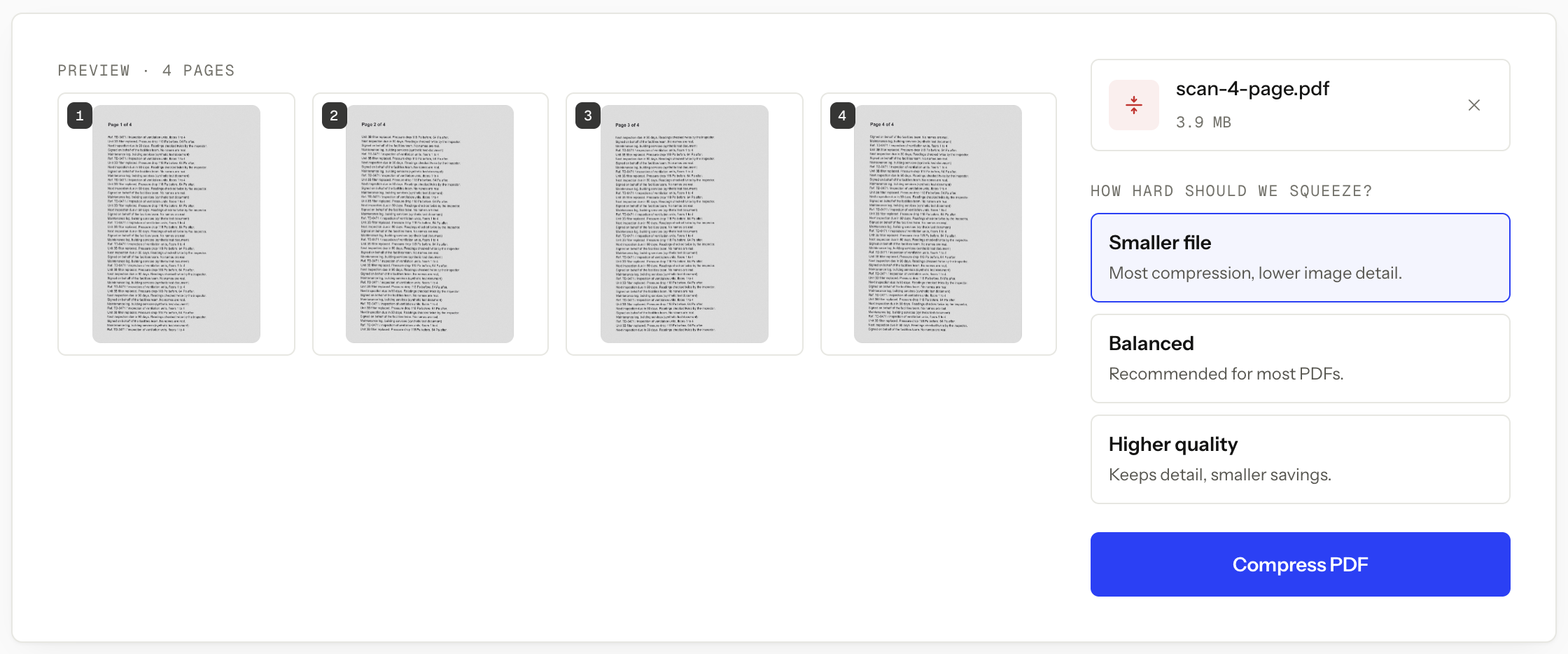
We measured these on 2026-10-09 by sending the two synthetic files through our compress worker running locally on Ghostscript 10.02.1. Production runs the same worker code and settings, but its Ghostscript package can be a different version, so exact sizes there may differ: a similar 3.9 MB synthetic scan on the live site came back 343 KB, 91% smaller, on Smaller file. “Larger” means Ghostscript produced a bigger file than the upload, so the tool returned the original instead.
Choose the level by document type
-
Start from the original file, not a copy you compressed earlier. Each pass begins with less image information than the one before it.
-
Decide which kind of PDF you have using the text-selection check above, then add the file to Compress PDF. It takes one PDF at a time.
-
For a text-based PDF, leave the level under How hard should we squeeze? on Balanced, which is already selected, and expect a small saving. If the result would be larger than your upload, you get your original back and the result reads “This PDF was already about as small as it gets, so we kept the original.” That is the tool working, not failing.
-
For a scan, use Balanced when detail matters more than the number, and Smaller file when a hard upload limit matters more than detail. On our test scan, Smaller file was the only level that reduced anything.
-
Press Compress PDF, then Download compressed.pdf, and open the result at full size in a real PDF viewer, not a thumbnail. Read the smallest text on a first, middle, and last page before you send it anywhere.
Compress PDF
Shrink a PDF to email-able size
Free · no signup · files deleted in 60 minutes
Judge the result by reading it, not by the percentage
A big reduction number tells you nothing about whether the document still does its job. Zoom in past 100% and check the parts that fail first:
- names, addresses, dates, and reference numbers
- decimal points, punctuation, and digits that look alike, such as 3, 8, and 0
- signatures, initials, stamps, and faint handwriting
- fine lines in diagrams, checkboxes, and shaded form fields
- searchable text, if the original was searchable, by searching a word you can see
Scan quality often varies between pages, so one good page is not evidence. If the smallest print is still readable and the file is under the limit, you are done. If it is not, a smaller number will not rescue it.
When quality genuinely cannot be lost
Sometimes the answer is not a compression level. If every mark has to stay exact, the useful moves happen outside the compressor:
- Rescan the paper at a lower resolution, or in grayscale when colour carries no information. Creating a smaller source beats squeezing a large one, and the text usually stays cleaner.
- Send fewer pages. Most documents contain pages the recipient does not need, and removing them is the most predictable size reduction available.
- Ask whether a download link is acceptable. It is one question, and it often costs less than degrading a document to satisfy a form.
- Fix it before export. If you still have the source document, resizing an oversized photograph and exporting once beats compressing the PDF afterwards.
For a scan specifically, the guide to compressing a scanned PDF goes deeper into inspecting the result. If your file is large and you do not know why, why PDFs get so big covers where the weight usually hides.
A note on uploading
The file goes to our server, gets compressed, and both the upload and the result are deleted automatically about an hour after you upload it. A cleanup pass runs every ten minutes, so the longest a file stays is about seventy minutes. There is no account, no watermark, and no daily limit.
Automatic deletion does not override a workplace, school, legal, or healthcare rule that forbids third-party processing. When the rule says local only, use approved offline software instead, even for a document that seems harmless.
When this won’t work
- The PDF is already optimized. There is nothing left to reclaim, so you get your original back and no level changes that.
- Every mark must stay exact. Archival scans, medical images, plans, and identity documents can lose the detail that made them worth keeping. Keep the original and send it another way.
- You need a guaranteed output size. No compressor can promise one, because the result depends on what is inside the pages. If you have a specific target, compressing a PDF under 1 MB for email covers what to do when one pass falls short.
- The file is over 50 MB. That is our per-file upload cap. Produce a smaller scan or use approved offline software.
- The document cannot be uploaded. Short retention is not the same promise as no upload, and a policy that forbids third-party processing still applies.
Questions
Is there a truly lossless way to compress a PDF?
Not in a way that helps most people. Most of the saving in any PDF compressor comes from reducing image data, so a file whose size is mainly images cannot get much smaller and stay identical.
Why did the result say it kept the original?
The compression engine can produce a file larger than the one you uploaded, usually because the PDF was already efficiently encoded. We never hand back a bigger file, so the tool keeps your original and tells you: "This PDF was already about as small as it gets, so we kept the original." The download is then your own file, unchanged.
Which level preserves the most quality?
Higher quality. It also saves the least, and on an already-optimized file it can produce a larger result, in which case you simply get your original back.
Can I restore the original quality after compressing?
No. Compression discards image data that cannot be rebuilt, so keep the original file and run each new attempt from it rather than from a compressed copy.
My PDF is mostly text and still large. Will compression fix it?
Probably not by much. Selectable text is already compact, so the weight is almost always in embedded images, scanned pages, or fonts, and that is where to look first.
Compress PDF
Shrink a PDF to email-able size
Free · no signup · files deleted in 60 minutes
The rest of this topic
- How do I get my PDF under a 1 MB upload limit?Open Compress PDF, choose Smaller file, and check the result before sending it.Main guide
- How do I compress a scanned PDF without making it unreadable?Open Compress PDF, upload the scan, and start with Balanced.How-to
- Why is my PDF so big?A PDF is usually large because it contains scanned pages, high-resolution photographs, or other image-heavy content.Explainer
- My PDF is too big to email, what do I do?Start with Compress PDF: a scanned document usually gets much smaller, while a text-only PDF barely moves.Main guide
- How do I compress a PDF to 500KB?Open Compress PDF, choose Smaller file, download the result, and check its size against 500 KB.How-to
Related guides
- How do I get my PDF under a 1 MB upload limit?Open Compress PDF, choose Smaller file, and check the result before sending it.Main guide
- How do I compress a scanned PDF without making it unreadable?Open Compress PDF, upload the scan, and start with Balanced.How-to
- Why is my PDF so big?A PDF is usually large because it contains scanned pages, high-resolution photographs, or other image-heavy content.Explainer