Main guide · PDF to Word
How to convert a PDF to Word and keep the formatting
Short answer
In this guide
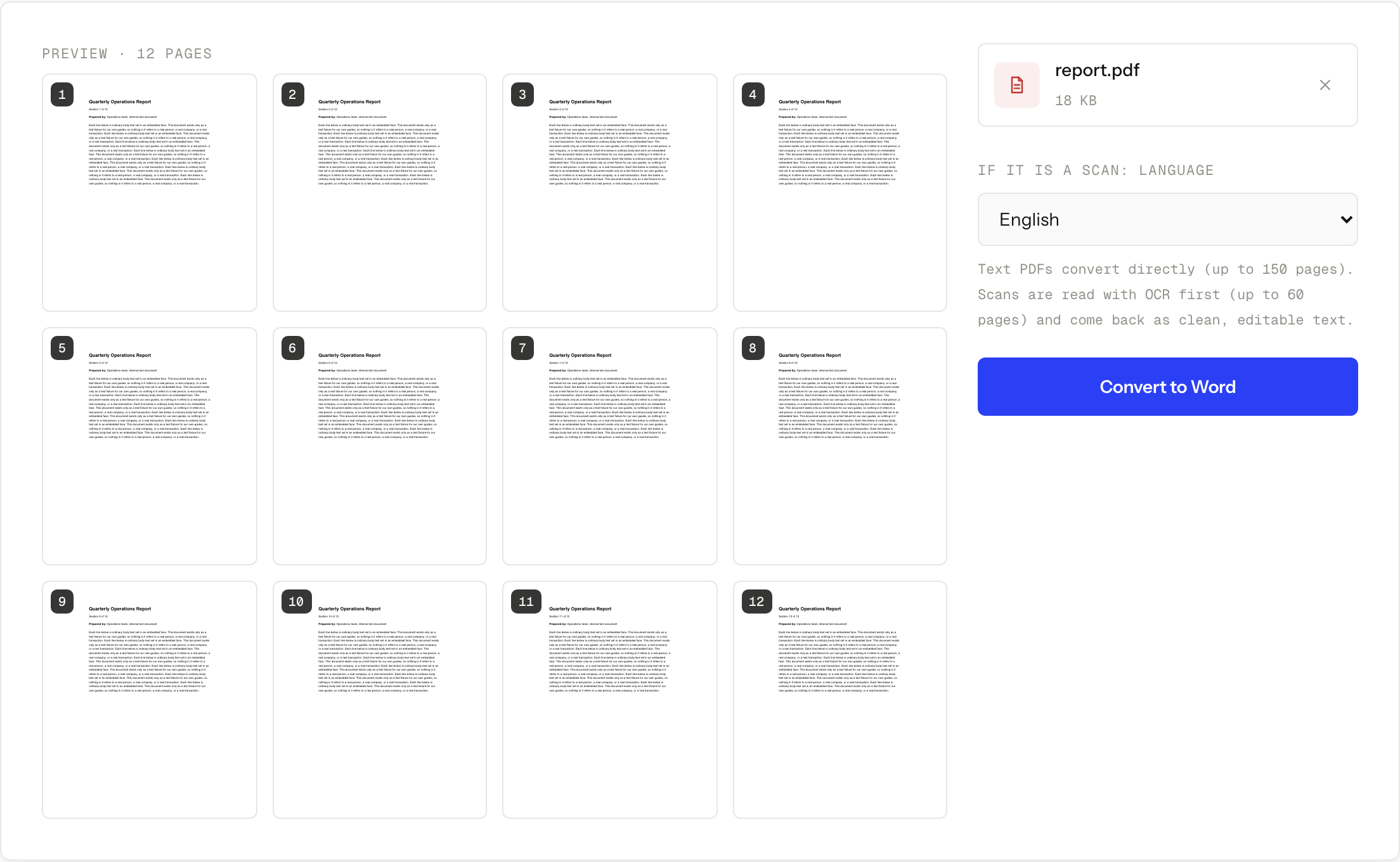
To convert a PDF to Word, open PDF to Word, upload one PDF, and download the .docx. Body text, headings, images, and simple tables usually arrive intact. Multi-column layouts, exact spacing, and nested tables usually get rebuilt into something that reads correctly but is not identical.
That is the honest version, and it is true of every converter, free or paid. The reason is worth two minutes of your time, because it tells you which parts of the result to trust and which parts to open and check.
Convert the PDF
-
Open PDF to Word and drop one PDF on the box marked Drop a PDF here, or click to browse. The file can be up to 50 MB.
-
If the pages are scans rather than real text, set the chooser marked If it is a scan: language to the language they are written in. It opens on English and it is ignored for a text-based PDF, but on a scan it decides which alphabet the recognizer expects, so leaving it wrong is the single easiest way to get a poor result.
-
Press Convert to Word. A scan is recognized first, which is why the page cap is lower for a scanned document.
-
Wait for the job to finish, then press Download converted.docx.
-
Open the .docx next to the original PDF and compare them. Headings, lists, tables, and any page that had more than one column are where differences show up first.
PDF → Word
Get an editable .docx back
Free · no signup · files deleted in 60 minutes
Why a conversion is a reconstruction, not a copy
A PDF is a record of placement. It says that this run of characters sits at these coordinates on this page, in this font, at this size. It does not generally say “this is a heading”, “these three lines are a bulleted list”, or “these cells belong to one table”.
Word is the opposite. It stores a flowing sequence of paragraphs, styles, tables, and list definitions, and works out placement at display time. That is why you can type a sentence into a Word paragraph and everything below it moves down, and why you cannot do the same to a PDF.
Converting means reading placement and inferring flow. The converter looks at positions, font sizes, and ruling lines and decides what structure was probably meant. On an ordinary report that inference is close to right. On a magazine spread or an intricate form it has to make more guesses, and some of them will be wrong.
What usually survives and what usually does not
Body text and images are the safe part. Text comes back as real, editable, selectable paragraphs, and images come back as images. Headings usually survive because a larger, bolder line at the top of a block is a strong signal. Simple tables with visible ruling lines usually come back as tables.
Lists, footnotes, headers, and footers sit in the middle. A bullet in a PDF may be nothing more than a bullet character followed by a tab, so it can convert as a plain paragraph instead of a real list. Footnotes and running headers are just text at a page position, so they can land in the body flow rather than in Word’s own header, footer, or footnote features.
Multi-column layouts, exact spacing, and nested tables are the part that gets rebuilt. Two blocks of text side by side could be two columns, a two-cell table, or two independent text boxes, and the converter has to pick one. Gaps created by exact coordinates in the PDF have to be recreated with paragraph spacing or empty paragraphs in Word. A table inside a table cell has to be inferred from lines and alignment alone.
None of this is a defect you can configure away. It is what the two formats disagree about.
Scanned PDFs have to be recognized first
If the pages are photographs of paper, there is no text to convert until the document has been through recognition. The tool does that step for you, which is why a scan is capped at 60 pages while a text-based PDF is capped at 150.
It decides which of those you have by counting, not by looking at the file type. Every page is checked for extractable text, and if half or more of them come back with almost none, the document is handled as a scan. That matters for mixed files more than for pure ones: a 70-page report with 35 scanned pages bound into it is treated as a scan and refused at the 60-page cap, even though half of it is real text and 70 is comfortably inside the 150-page limit.
Two more things follow. First, recognition errors become typos: a smudged digit can arrive in the .docx as a different digit, so proofread names, totals, dates, and reference numbers rather than assuming they carried across. Second, in a document that stays on the text side of that count, the odd picture-only page stays a picture. Run the PDF through OCR PDF first if you need those pages editable too.
The page and size limits
One job takes one PDF, up to 50 MB, up to 150 pages if it is text-based and up to 60 pages if it counts as scanned by the half-the-pages rule above. Uploads and results are deleted automatically about an hour later, so save the .docx before then. There is no account, no quota and no watermark; the only other ceiling is 20 requests a minute from one address, which normal use does not reach.
For a longer document, cut it into ranges first with the split guide, convert each part, and join the parts in Word. Joining is not free either: check the section breaks, the heading styles, and the page numbering where the parts meet, since each conversion made its own guesses independently.
When editing the PDF directly is the better move
A lot of PDF to Word conversions happen for a change that does not need a conversion at all. If the job is fixing a typo, correcting a date, adding a line, or blacking something out, going to Word and back costs you the layout twice and gives you a document that no longer matches the original.
Edit PDF changes the line in place instead, using the document’s own embedded font rather than a lookalike, on files up to 500 pages and at text sizes from 6 to 144 pt. Redaction there genuinely removes the content from the page, along with any form field, link, or attachment the redaction rectangle overlaps, so covered data cannot be recovered afterwards.
It has its own honest limits. There is no paragraph reflow, so a longer replacement does not push the following lines down: keep the replacement close to the original length. And a scanned page has no text to click on until it has been through OCR. But when the goal is a small change to a finished document, editing in place beats a round trip through Word almost every time.
Check the result before you rely on it
Open the .docx and answer five questions against the original PDF:
- Is the page count and the overall reading order right?
- Did any two-column page collapse into one run of text, or split into boxes?
- Are the tables real tables, with the right rows and columns?
- Did lists come back as lists, and did footnotes and page headers land somewhere sensible?
- On a converted scan, are the numbers, names, and dates correct?
Fix the structure in Word before you start rewriting content. Repairing a broken table after an hour of edits is much worse than repairing it first.
Your file travels over HTTPS and is used only for that conversion, and both the upload and the result are deleted automatically about an hour later. The online PDF safety guide covers what to ask before using any server-side tool. Automatic deletion does not override a workplace, school, legal, or healthcare rule that forbids third-party processing: when the rule says local only, use software approved for your device or organization.
When this won’t work
- The PDF is longer than the cap. 150 pages for text, 60 once half or more of the pages have no text layer. Split it into ranges, convert each part, and join them in Word.
- You need an identical copy of the layout. No converter can give you one. If the design has to be preserved exactly, keep the PDF and edit it, or go back to whoever holds the original source file.
- The file is over 50 MB. That is the upload cap. Split it or use approved local software.
- You only need a small change. Convert nothing. Edit the PDF in place and keep the layout you already have.
- The document cannot leave your organization. Automatic deletion is not the same as never uploading. Use a local converter approved for the device.
Questions
Will the Word file look exactly like the PDF?
No, and no converter can promise that. Body text, headings, images, and simple tables usually match closely, while multi-column pages and precise spacing are rebuilt from what the converter can infer.
Can I convert a scanned PDF?
Yes, up to 60 pages. The pages are recognized first so you get real text instead of a picture of text, so set the language before you start if the scan is not in English: there is a chooser on the page labelled "If it is a scan: language" with 13 languages in it. Recognition errors become typos in the .docx, so proofread names, numbers, and dates.
How many pages can it handle?
Up to 150 pages for a text-based PDF and up to 60 pages for a scanned one, with a 50 MB limit on the file and one PDF per job. Which cap applies is decided by counting pages, not by how the file was made: if half or more of the pages carry almost no extractable text, the whole document is treated as a scan and the 60-page cap applies to all of it. So a 70-page report with 35 scanned pages in it is refused, even though the other 35 are real text.
What if I only need to change one line?
Then do not convert at all. Editing the PDF directly changes the line in place and leaves the rest of the layout untouched, which is almost always the better trade.
Is there a watermark, a signup, or a daily limit?
None of the three. The .docx comes back clean, no account is needed, and there is no daily or monthly quota to run out of. There is one limit worth knowing: the server accepts 20 requests a minute from a single address, so a burst of conversions fired off back to back can be turned away for a moment. Normal use never reaches it. Uploads and results are deleted automatically about an hour later.
PDF → Word
Get an editable .docx back
Free · no signup · files deleted in 60 minutes
The rest of this topic
Related guides
- Is it safe to upload my PDF to a free online tool?A server-side tool copies your file to a server, processes it, and retains it until its deletion rule runs.Explainer
- How do I change text that is already in a PDF?Open Edit PDF, upload your file, choose Edit text, and click the line you want to change.Main guide
- How do I make a scanned PDF searchable?Upload the scan to OCR PDF, choose the language the document is written in, run the job, and download searchable.pdf.Main guide