Main guide · Scanned PDFs and OCR
How to make a scanned PDF searchable
Short answer
In this guide
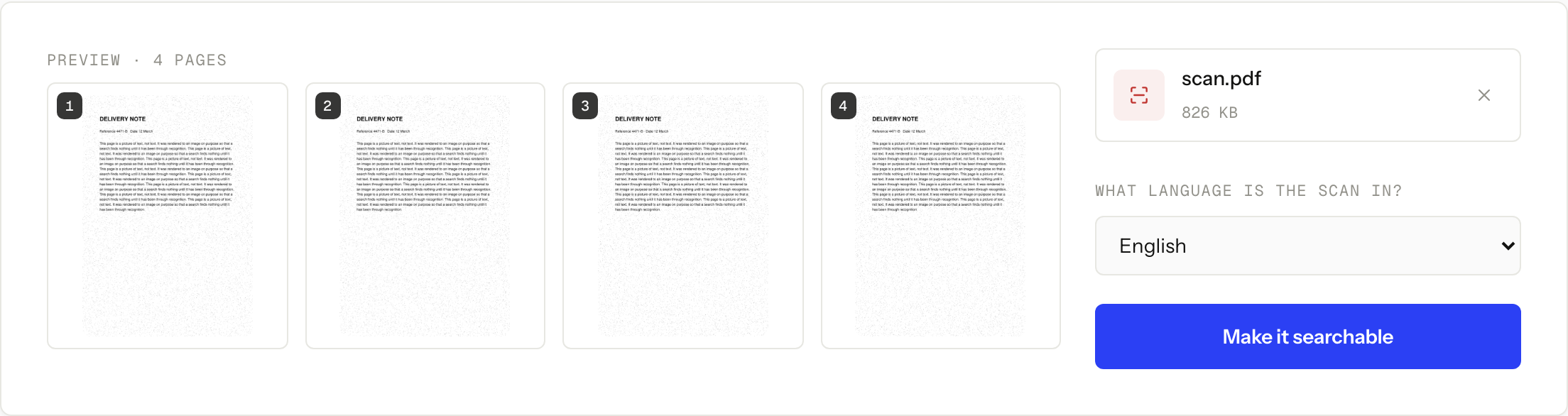
A scanned page is a picture of text, not text. Your eyes read it, but the file holds pixels, so search finds nothing and copy gives you nothing. Optical character recognition (OCR) reads the picture and writes what it found into an invisible layer beneath the image. Run the scan through our OCR tool, choose the language the document is written in, and download the result: your pages are the same pictures they always were, straightened if they went in crooked, but search, copy, paste and text extraction now work.
If you want the diagnosis before the fix, why you cannot search text in a scanned PDF covers how to tell a scan apart from a normal text PDF.
Make the scan searchable
-
Open OCR PDF and add the scanned file. One job takes one PDF, up to 60 pages and up to 50 MB. There is no signup and no watermark on the result.
-
Set What language is the scan in? to the language of the document. This is the setting that matters most, and it is worth a second look before you start.
-
Press Make it searchable. OCR is the slowest tool on this site: every page is cleaned up and then read character by character, so a long scan takes noticeably longer than a short one.
-
Download searchable.pdf, open it in any PDF reader, and search for a word you can see on the first page. If it highlights, the text layer is there.
OCR a PDF
Make scanned PDFs searchable
Free · no signup · files deleted in 60 minutes
What the output actually is
The file you get back is your page images with a text layer positioned underneath them. Your words are never redrawn, no font is substituted, no line reflows, which is the point: a signed form, a stamped invoice or an old letter still has to look like itself.
Two things about the page do change, and both are improvements rather than surprises. A page that went through the feeder crooked comes out straightened, up to about 15 degrees, and a page that was scanned sideways comes out upright. So the result is not pixel for pixel what you sent, and if the exact original framing matters to you, keep your copy of the source file.
That design has a consequence worth understanding. The visible page is still an image. OCR makes the words findable, not rewritable, so this is not a route to editing a scan.
Pick the language before you run
Thirteen languages are installed on the worker, and the job uses the one you choose. Recognition is not a spell checker: it does not notice that the language is wrong and correct itself. It maps shapes to the characters of the language it was told to expect, which means the wrong setting produces text that looks plausible in the file and matches nothing you search for.
If a document mixes languages, pick the one that carries the text you actually need to find, and expect the other one to come out worse.
The cleanup passes, and what they cannot do
Three cleanup passes run before recognition. Each one measures the page first and leaves it alone if it does not need the help, because every one of these filters costs something when it is applied to a page that was already fine.
- Deskew straightens a page that went through the feeder at an angle, up to about 15 degrees. This is the pass that changes the page you get back, and it is deliberately skipped on a heavily speckled page, because rotating speckle smears it into blobs that no later filter can remove.
- Despeckle erases the scatter of isolated dark dots that photocopiers and older scanners leave behind. It runs only when the speckle is measurably there, because the same filter eats thin strokes on low-resolution text.
- Even out the light rescues a broad shadow or a dark edge, the kind an open scanner lid or a phone held over a page produces. Without it a single brightness cutoff loses whole paragraphs on the dark side of the sheet.
The last two change only the picture the recognizer reads, never the page in your file. A speckled scan comes back just as speckled and a shadowed one just as shadowed: it is the text underneath that comes out right.
What none of them do is add detail that was never captured. Camera shake, glare bright enough to erase the letters under it, or a book shot at an angle so the lines curve across the page: those are input problems. If the source is a phone photo and the result is poor, reshooting the page flat under even light will do more than any setting here.
Pages that already have text keep it
Plenty of real documents are mixed: a typed contract with scanned signature pages appended, or an exported report with a photographed receipt stapled on the end. Text that is already real is never re-recognized, because text that is already perfect can only get worse by being turned into an image guess.
So a page that is nothing but text comes back exactly as its author wrote it. A page carrying both real text and a picture gets a second, narrower pass: the existing text is left untouched and only the picture is read, which means the receipt pasted into the middle of a typed page becomes searchable too without putting the typed words at risk.
Check the result before you rely on it
Recognition is never perfect, and the errors are invisible: the page still looks right, because the page is the same image. Search for a handful of things you know are in the document, spread across it. A word from the first page, a word from the last, a proper noun, and a number such as an invoice reference or a date. Numbers and unusual names are where mistakes tend to show up first.
One combination is worth knowing about, because it is the hardest case here: a page that is both badly crooked and heavily speckled. The speckle rules out straightening, for the reason above, and recognition is then left to cope with the angle on its own. A scan like that can come back with very little text found, or none at all, while the job still reports success. If that happens, straighten the page in your scanner software and run it again.
If you need the content in Word rather than just findable, PDF to Word recognizes a scanned file first and has its own 60 page cap for scanned input. Converting a PDF to Word covers what survives that trip and what gets rebuilt.
Size limits, and what to do when you hit them
Scans are large files, because every page is a photograph. If a single file is over 50 MB it cannot be uploaded at all, so use software approved for your device or rescan the document at a smaller size. Compressing a scanned PDF explains the trade-off if you go that way: compression works by throwing away image detail, and image detail is exactly what recognition needs, so it is a last resort before OCR rather than a routine first step.
If the document is under 50 MB but longer than 60 pages, use Split PDF to cut it into batches of 60 pages or fewer and run each batch as its own job.
Where the file goes
The scan travels over HTTPS and is used only for that job. The upload and the result are deleted automatically about 60 minutes afterwards. The online PDF safety guide sets out the questions worth asking before sending any document to a server-side tool.
Scans are exactly the category where this matters, because the things people most want to make searchable are medical records, contracts, bank statements and HR files. Automatic deletion does not override a workplace, school, legal or healthcare rule that forbids third-party processing. When the rule says local only, use approved local software instead.
When this won’t work
- The document is longer than 60 pages. One job stops at 60. Split the file into batches first and run them one at a time.
- The source image is bad. Blur, glare and curved lines from a book spine defeat recognition. The cleanup passes tidy a page up and even out its lighting, but they cannot add detail the scanner or camera never captured.
- The language is not one of the thirteen. If the document is written in a script we do not have installed, choosing the closest available language will not approximate it. It will produce confident nonsense.
- You need to edit the text, not find it. The visible page stays an image with a text layer underneath. OCR makes a scan searchable, not rewritable.
- The file must not leave your device. A scan under a local-only policy should go through approved software on the machine, whatever the deletion window on a web tool says.
Questions
Will the pages look different afterwards?
Your page images are kept and the recognized text goes into a layer underneath them, so the page is never retyped and no font is substituted. They are recompressed on the way through, which usually makes the file smaller without a visible change. Two changes are deliberate improvements: a crooked scan comes out straightened, up to about 15 degrees, and a page scanned sideways comes out upright. Speckle and shadows are not cleaned off the page you get back.
How many pages can one job handle?
Up to 60 pages, and one PDF per job. A longer document has to be cut into batches of 60 pages or fewer and run separately.
What if the document mixes two languages?
Pick the language that carries the text you actually need to find. Recognition is set per job, so the other language will come out less accurately.
Can I OCR photos of pages taken with my phone?
Turn them into a PDF first with Images to PDF, which accepts iPhone HEIC files, then run that PDF through OCR. Shoot the pages flat and evenly lit, because recognition cannot recover detail the camera never captured.
Is my scan stored after the job?
No. The upload and the result are deleted automatically about 60 minutes after the job, and the file is used only for that job. If a policy forbids third-party processing, that automatic deletion does not make the upload allowed.
OCR a PDF
Make scanned PDFs searchable
Free · no signup · files deleted in 60 minutes
The rest of this topic
Related guides
- Why can't I search or copy the text in my scanned PDF?Because the pages are images, not text.Explainer
- How do I convert a PDF to Word without losing the formatting?Open PDF to Word, upload one PDF, and download the .docx.Main guide
- How do I get the text out of a scanned PDF?Run the file through OCR a PDF first.How-to