Main guide · Split PDF
How to split a PDF into separate pages for free
Short answer
In this guide
To split a PDF into separate pages, open Split PDF,
upload one PDF, enter individual page numbers such as 2, 4, 6, and choose
Separate files. The download is a ZIP with one PDF for each
comma-separated number or range. If you choose One PDF instead, the
selected pages return together in one new document.
The distinction between a page and a range matters. Entering 2, 4, 6 creates
three groups, so Separate files returns three PDFs. Entering 2-6 creates one
group containing five pages, so it returns one five-page PDF inside the ZIP.
Split the PDF
-
Open the tool and add one PDF. The file can contain any number of pages, but it must be no larger than 50 MB.
-
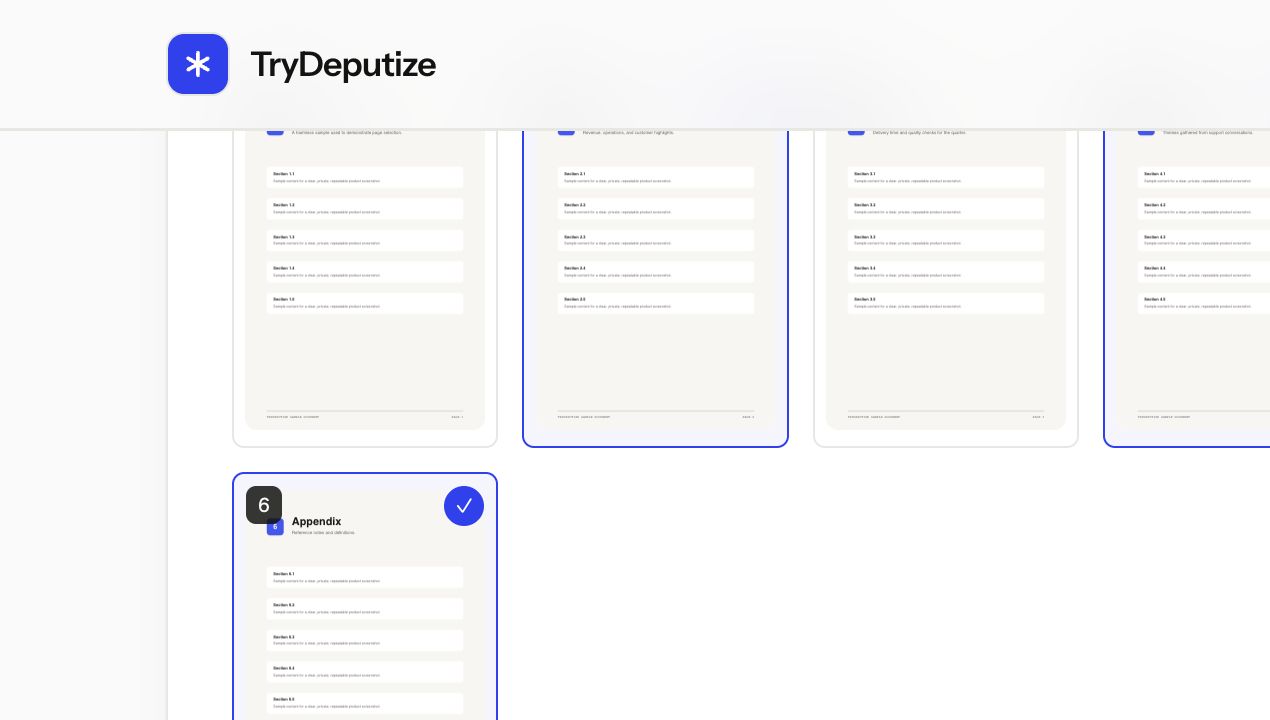
Wait for the page preview, then tap the pages you want or type them in the range field. You can use a range such as
1-3, a single page such as5, several groups such as1-3, 5, 8-10, or an open-ended range such as8-. -
Choose Separate files if each comma-separated group should be its own PDF. Choose One PDF if all selected pages should be collected into one new document.
-
Select Split PDF, download the result, and open it once to confirm that the right pages are present. Separate files arrive together in a ZIP.
Split PDF
Extract pages or break a PDF apart
Free · no signup · files deleted in 60 minutes
Page numbers and ranges without the guesswork
The range field is useful when a document has many pages, but it is also where small typing mistakes change the result. These examples show exactly what the tool reads:
| What you type | Pages selected | Separate files result |
|---|---|---|
5 | Page 5 | One PDF containing page 5 |
1-3 | Pages 1, 2, and 3 | One PDF containing all three pages |
2, 4, 6 | Pages 2, 4, and 6 | Three one-page PDFs in a ZIP |
1-3, 5, 8-10 | Pages 1 to 3, page 5, and pages 8 to 10 | Three PDFs in a ZIP |
8- | Page 8 through the final page | One PDF containing that whole range |
If your goal is one file for every page, list the pages individually with commas. A continuous range deliberately stays together. That makes it possible to create useful groups, such as one PDF for a cover and introduction, another for the main report, and a third for the appendices, in a single split.
The preview grid and the typed field stay in sync. Tapping pages is easiest for a short document because you can see what you are selecting. Typing ranges is faster for a long report where you already know the page numbers. Documents with more than 80 pages still work: later pages use numbered placeholders instead of rendered thumbnails, and they remain selectable by number.
Choose the output that matches the job
One PDF is really an extraction mode. It takes the pages you specify and puts them into a single smaller document. Use it when you need to send only one chapter, remove irrelevant pages from a copy, or pull an appendix out for someone who does not need the full report.
Separate files creates one PDF for each comma-separated range and packages the results in a ZIP. Use it when pages or sections need to be uploaded individually, given to different people, or filed under separate names.
Splitting does not edit the contents of a page. If a selected page is sideways, use Rotate PDF on the result. If the job is the opposite and you need several documents joined together, follow the PDF merging guide. Splitting first and merging selected sections later can also be a practical way to rebuild a document without changing its original.
Check the result before sending it
Open the downloaded PDF or ZIP instead of trusting the filename alone. Confirm the first and last page of every range, especially when the document has a cover page that shifts the printed page numbers by one. A report may label its first content page as page 1 even though the PDF viewer calls it page 3. TryDeputize follows the page numbers shown in the preview, not numbers printed inside the document.
Keep the original PDF until the result has been checked. The split creates a new file and does not alter the copy on your device. Uploaded files and results are removed from the server automatically about an hour after the job starts, so download the result while it is available.
Privacy and protected files
The PDF is uploaded over HTTPS because the split runs on the server. That is reasonable for ordinary paperwork, but it may not satisfy a workplace, healthcare, or legal policy that forbids third-party uploads. Use an approved offline application when the rule is that a document must never leave your device.
A password-protected PDF cannot be split until it can be opened. If you know the password and are allowed to remove it, make an unlocked working copy with Unlock PDF, split that copy, and store or delete it carefully afterwards. The tool cannot recover a password you do not know.
When this won’t work
- The PDF is over 50 MB. There is no separate page limit, but the upload cap is 50 MB for the one input file. A trusted desktop PDF application is the better option for a larger document.
- The file needs a password to open. Unlock it first using the password you already know. Encryption cannot be bypassed by the split.
- The PDF is damaged. A file that cannot be read reliably cannot be split reliably. Re-export it from the original application if possible.
- You need to change text, redact information, or rearrange content within a page. Splitting only chooses whole pages. It does not rewrite what is on them.
- The document must remain entirely offline. The file is removed about an hour later, but it is still uploaded for processing. Use local software when uploading is not permitted.
Questions
Will every selected page become its own PDF?
Only when every page is entered as its own comma-separated range. For example, 2, 4, 6 creates three PDFs, while 2-6 is one range and creates one five-page PDF inside the ZIP.
Can I put the selected pages into one new PDF instead?
Yes. Choose One PDF and every selected range is copied into one PDF in the order entered.
Is there a page limit?
There is no separate page-count limit. The uploaded PDF must be 50 MB or smaller, and very large documents can take longer to preview and process.
Does splitting reduce the quality of the pages?
The selected PDF pages are copied into the result rather than turned into screenshots. Images are not deliberately recompressed, and selectable text remains text.
Split PDF
Extract pages or break a PDF apart
Free · no signup · files deleted in 60 minutes
The rest of this topic
Related guides