Explainer · Split PDF
Split vs extract: getting exactly the pages you need
Short answer
In this guide
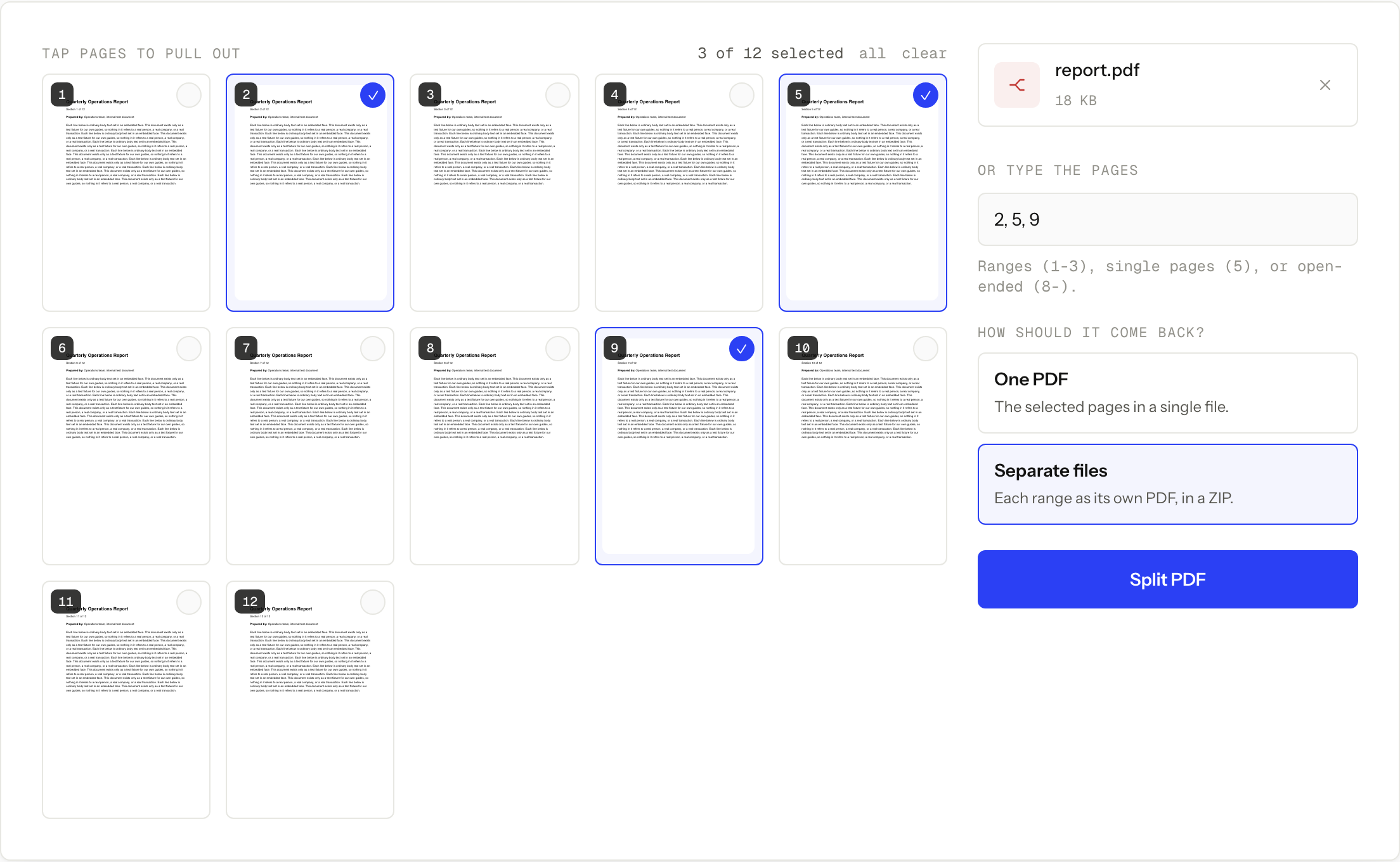
Extract and split are two different jobs sharing one word, which is why people end up with the wrong file. Extracting means pulling selected pages out of a document into one new PDF. Splitting means breaking a document into several files. Split PDF does both, and you steer between them with two independent controls: the page ranges decide which pages you get, and the output mode decides how many files they arrive in.
The rule that predicts your output
Count the comma-separated groups in the pages field, then read the output mode. Tapping pages in the preview grid rewrites that field for you, and consecutive pages collapse into one hyphenated range, so trust what the field says rather than how many pages you tapped.
One PDF returns a single document, however many groups you entered. That is extraction.
Separate files returns one PDF for each group, packaged in a ZIP. That is splitting.
The part that trips people up is what counts as a group. 2, 5, 9 is three
groups. 2-6 is one group that happens to contain five pages, so Separate files
returns a ZIP with a single five-page PDF inside it. The full range syntax,
including open-ended ranges such as 8-, is in the
main Split PDF guide.
Three situations, three answers
A 40-page agreement where only the signature pages need to go out. This is
extraction. Type 38-40, choose One PDF, and send the three-page result. The
recipient gets one attachment holding only what concerns them, and the ranges
never needed to be split apart.
Twelve pages of scanned invoices, two pages per invoice, that a portal wants uploaded one invoice at a time.
This is splitting. Type 1-2, 3-4, 5-6, 7-8, 9-10, 11-12, choose Separate
files, and the ZIP holds six PDFs, one per invoice. Choosing One PDF here gives
you back a document almost identical to the one you started with.
A report going to three different reviewers. This is splitting into
deliberate groups rather than into single pages. Ranges of 1-2, 3-18, 19- with
Separate files return the cover, the body, and the appendix as three files you
can send separately. The same ranges with One PDF would rebuild nearly the whole
report, which is rarely the point.
How to get either one
-
Open the tool and add one PDF. The input file must be 50 MB or smaller.
-
Tap pages in the preview grid, or type them in the field labelled Or type the pages. Put a comma between groups you want kept apart, and use a hyphen inside a group you want kept together. Tapping consecutive pages writes them as one hyphenated range, so if those pages need to come back as separate files, edit the field and put commas between the groups yourself.
-
Choose the output before you run the job. One PDF for a single extracted document, Separate files for one PDF per group delivered in a ZIP.
-
Select Split PDF, download the result, and open it. Check the first and last page of every range before you delete anything.
Split PDF
Extract pages or break a PDF apart
Free · no signup · files deleted in 60 minutes
Why the wrong choice looks like a bug
Two reports arrive regularly, and neither is a failure. The first is a ZIP that contains one PDF: that happens when Separate files meets a single continuous range, because there was only ever one group to separate. The second is one document when six were expected: that is One PDF quietly doing exactly what it promises.
Both are fixed with Split again, which keeps the file loaded: change the output mode, run the job once more, and there is no second upload. It is worth checking the mode before you download rather than after you have sent the file on.
One more source of surprise is page numbering. The tool works from the page numbers in the preview, not from numbers printed inside the document. A report whose first content page is labelled page 1 may sit at page 3 in the PDF, and a range typed from the printed numbers will be off by that offset.
Extract, delete, reorder: three different tools
Extraction picks the pages you want to keep. If your real goal is a copy of the document with two pages gone, listing every page you want to keep is the long way around, and Delete PDF Pages does it directly. If the pages are correct but in the wrong order, Organize PDF does that directly: drag the pages into place and download the rebuilt document. And if you split a document, worked on the pieces, and now want it whole again, the merging guide covers putting them back in a set order.
Splitting never rewrites what is on a page. It copies whole pages into new files, so a sideways page stays sideways and a scan stays a scan.
Before you upload either way
Both modes run on our server, so the PDF travels over HTTPS and is used only for that job. Uploads and results are deleted automatically about an hour later, which is why you should download before walking away. There is no account, no watermark, and no daily limit.
Automatic deletion does not override a workplace, school, legal, or healthcare rule that forbids third-party processing. When the rule is local only, use approved offline software. The guide to what happens to an uploaded PDF covers the questions worth asking before any server-side tool touches a document.
When this won’t work
- The PDF is over 50 MB. Split takes one input file and the upload cap applies to it, whichever output mode you pick. Use trusted desktop software for a larger document.
- The file needs a password to open. Make an unlocked working copy with Unlock PDF first, using the password you already know. A forgotten password cannot be recovered by us or by anyone selling a recovery service for a properly encrypted file.
- You need pages reordered rather than separated. One PDF copies the groups
in the order you type them, so
3, 1, 2does come back in that order. For anything longer than a few pages, Organize PDF does the same job by dragging. - You want to keep everything except a few pages. Extraction works, but deleting the unwanted pages is fewer steps and less error-prone on a long document.
- The document cannot leave your device. Deletion after an hour is still an upload. Use approved local software when policy says so.
Questions
Is extracting just splitting with one range?
Close, but the number of ranges is not what decides it. Extraction is the One PDF output mode, and it returns a single document however many ranges you enter. Splitting is the Separate files mode, which returns one PDF per range in a ZIP.
Why did my ZIP contain only one PDF?
Because the pages were typed as one continuous range. Separate files creates one PDF for each comma-separated group, so 2-6 is a single group and returns a single five-page PDF.
Does splitting change the original PDF?
No. The split writes new files and leaves your copy alone. Keep the original until you have opened the result and checked the pages.
Can I extract pages from a scanned PDF?
Yes. The split copies whole pages whether they hold text or images. It does not make a scan searchable, which is a separate OCR job.
How long is the result available?
Uploads and results are deleted automatically about an hour after the job. Download the PDF or ZIP while it is still there.
Split PDF
Extract pages or break a PDF apart
Free · no signup · files deleted in 60 minutes
The rest of this topic
Related guides