How-to · Split PDF
How to extract one page from a PDF
Short answer
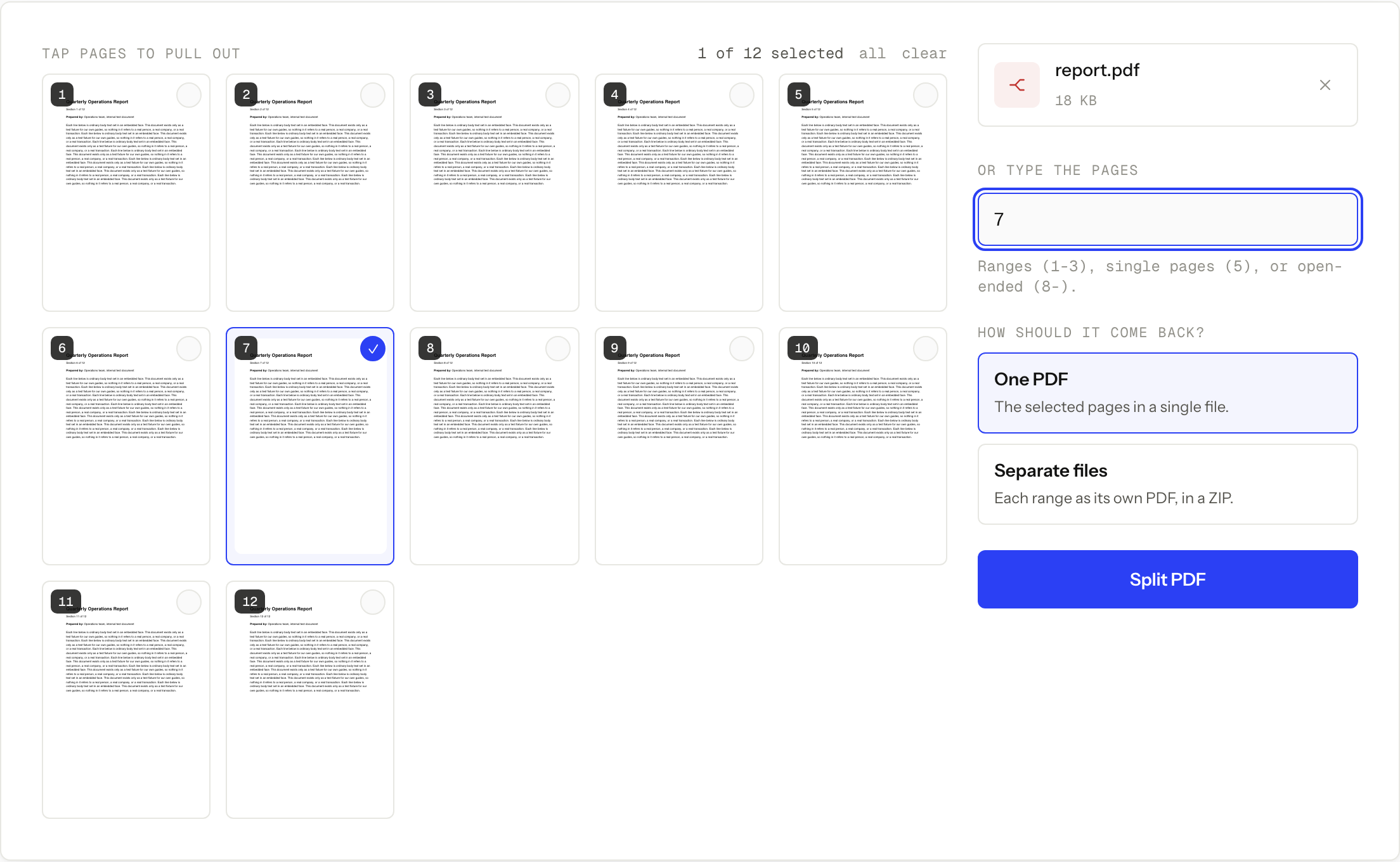
To extract one page from a PDF, open Split PDF, upload the
document, type the page number on its own in the range field, and download the
result. Typing 7 gives you a new PDF containing page 7 and nothing else. Your
original file is not modified, so there is nothing to undo if you pick the wrong
page and need to run it again.
The tool is called Split PDF because the same machinery handles both jobs. Extracting one page is just a split where you keep one range.
Pull the page out
-
Open the tool and add the PDF. One file per job, 50 MB or smaller.
-
Wait for the page preview to load, then tap the page you want. You can also type its number in the range field. For a single page that is just the number, such as
7. Only the first 80 pages get a rendered thumbnail. Past that the grid shows a numbered placeholder, still tappable, so on a long document type the number rather than looking for the picture. -
Leave the output mode as it is. With one page selected, both modes contain the same page. One PDF hands you the PDF directly, Separate files wraps it in a ZIP you have to open first.
-
Click Split PDF, then download the result (it comes back as
split.pdf) and open it to confirm it is the page you meant.
Split PDF
Extract pages or break a PDF apart
Free · no signup · files deleted in 60 minutes
Writing the range
The field takes page numbers and ranges separated by commas. A single number is a valid entry on its own, which is what makes this a one-page extraction rather than a split.
Scattered pages work the same way. Typing 1, 4, 9 selects three pages that are
nowhere near each other, and typing 12- selects page 12 through the last page
without you having to know how long the document is.
Numbers do not have to be in ascending order for the tool to accept them, but they do control the order of the output in combined mode, so type them in the order you want to read them. One catch: tapping any page in the preview grid rewrites the whole field into ascending order, so if you want a custom order, do your tapping first and type the order last.
Combined or separate, and when it matters
For one page the choice is only packaging. For scattered pages it decides how many files you end up with.
Take 1, 4, 9. That is three comma-separated groups. One PDF copies all
three pages into a single three-page document in the order you typed them.
Separate files treats each group as its own output and gives you three
one-page PDFs delivered together in a ZIP.
A hyphenated range stays together in both modes. 2-5 is one group, so it is
one four-page PDF either way: on its own in One PDF, inside a ZIP in Separate
files. If you want four individual pages out of that run,
type 2, 3, 4, 5 and choose Separate files. The
full Split PDF guide works
through the grouping rules with more examples.
Check the page number before you send it
Open the download rather than trusting the filename. The most common mistake is not a typo in the range field, it is the offset between the number a PDF viewer gives a page and the number printed on it. A report with a cover and a contents page can print “1” on what the viewer calls page 3. Split PDF follows the preview numbering.
Uploads and results are deleted from the server automatically about 60 minutes after the job, so download the file while it is there. If you want the detail on what happens to a file in between, we wrote it up in what happens to a PDF you upload.
When this won’t work
- The PDF is over 50 MB. The upload cap is 50 MB for the single input file. Use a trusted desktop PDF application for anything larger.
- The file needs a password to open. Make an unlocked working copy first with Unlock PDF, using the password you already know, and extract from that copy. Nothing here guesses or recovers passwords.
- You want to remove one page instead of keeping one. That is the inverse job. Use Delete PDF Pages instead, because typing a long “everything except page 7” range by hand is a good way to get it wrong.
- The page needs editing, not extracting. A split copies whole pages as they are. Changing text or redacting is Edit PDF, and straightening a sideways scan is Rotate PDF.
- The document must not leave your device. Automatic deletion does not override a workplace, school, legal, or healthcare rule that forbids third-party processing. Use approved local software when that is the rule.
Questions
How do I extract only page 7?
Type 7 on its own in the range field, or tap page 7 in the preview grid. The result is a one-page PDF.
Can I extract pages that are not next to each other?
Yes. Separate them with commas, such as 1, 4, 9. Choose One PDF to get all three pages in a single document, or Separate files to get three one-page PDFs in a ZIP.
Does the original PDF change?
No. The split writes a new file and never edits the copy on your device, so keep the original until you have checked the result.
Which page number should I use if the printed numbers differ?
Use the number shown in the preview grid, not the number printed on the page. A cover page often shifts the printed numbering by one or more.
Does extracting a page reduce its quality?
The page is copied into the new PDF rather than turned into a screenshot. Selectable text stays text, and the images are not recompressed.
Split PDF
Extract pages or break a PDF apart
Free · no signup · files deleted in 60 minutes
The rest of this topic
Related guides